
Watch how
Install it in two minutes
Put it on your Home Screen
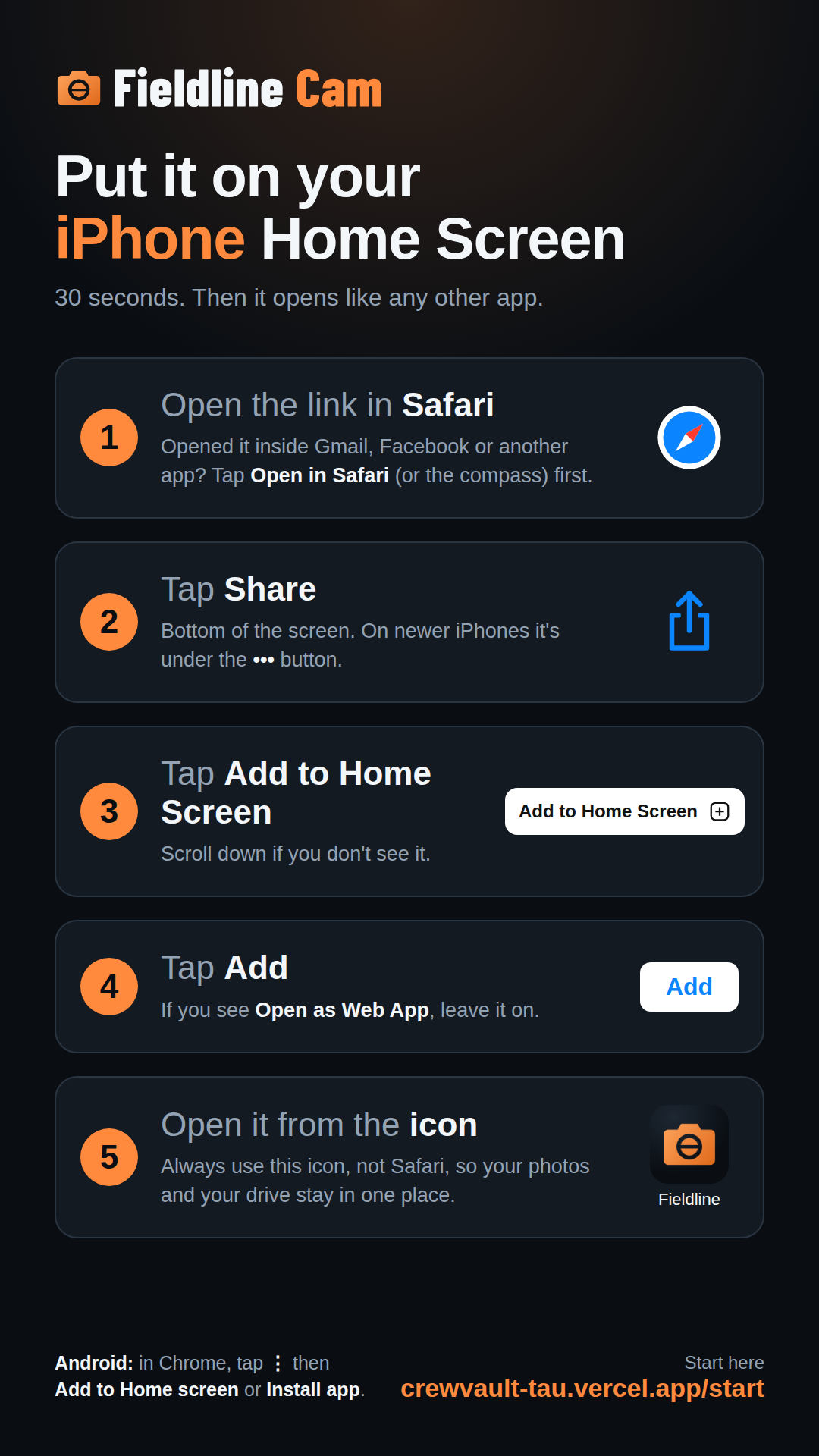
iPhone: open this page in Safari (if you opened it from Gmail, Facebook or another app, tap Open in Safari first). Tap Share, then Add to Home Screen, then Add. On newer iPhones Share is under the ••• button.
Android: in Chrome, tap ⋮, then Add to Home screen or Install app.
From now on, open SiteStash from its Home Screen icon, not the browser. They keep separate storage, so photos taken in one don't show in the other.
Step-by-step pictureConnect your drive
Open SiteStash from the icon, open the menu, tap the Settings gear at the top, then Photos & Drive. Tap Sign in with Microsoft or Sign in with Google, whichever you use. You can connect both.
Google says “Google hasn't verified this app”? That's expected for a new app. Tap Advanced, then Go to … (unsafe). SiteStash can only see the files it creates itself, never the rest of your drive.
Work account says “Need admin approval”? Your company blocks new apps. Use a personal OneDrive or a Gmail account instead, or ask your IT.
Shoot your first batch
Tap Take photos and shoot as many as you like. Tap Done, give the batch a name, pick the project and a folder, and tap Save and send.
Then look in your drive: it's in SiteStash / 42 Maple St / Estimates, as 2026-09-24_Panel A rough-in with the photos numbered inside. Tap + New project… the first time to add the project.
Still shooting? Save for later keeps the batch on your phone. Add to it through the day and send it once.
Already installed?
Open SiteStash from your Home Screen icon. On a computer you can open it in the browser.